| |

|
Saturday, October 16, 2004
|
|
Radio UserLand 8.1 release. Radio UserLand 8.1 has been released and a new installer is available for download for new users which includes all the latest changes since the last 8.0.8 release. Note: There wasn't an application upgrade in this release so the application version will still read 8.0.8.
If you are an existing users, you just need to update Radio.root to receive the latest updates including the most recent changes released in September. [Radio UserLand Messages]
2:08:35 PM 
|
|
Radio 8.1. Radio UserLand 8.1 is available for download. This page explains how to upgrade if you are already using Radio 8; otherwise please follow the instructions on the Download page.
How to upgrade 
The Radio 8.1 release does not include a new application file to upgrade. You just need to update Radio.root.
New features and fixes
New feature: This release includes the previously released beta for Atom support for the Radio news aggregator.
New preference: You can now change the sort order using a new preference from the default to display the oldest news items first.
New macro: radio.macros.linkToStyleSheet that you can use this new macro to link to a CSS file instead of directly including the style sheet in each page.
Bug fix: Four scripts changed from nested tables to paragraphs: radio.macros.cloudLinks, radio.macros.statusCenter, radio.macros.statusMessage, radio.macros.supportCenter.
Bug fix: Corrected the HTML generated for some of imagesin radio.macros.blogroll, removing the valign atribute from the img tag since it's not HTML/XHTML compliant
Bug fix: Three text area changes to make themes a bit easier to create. The title box, URL box and URLs to ping box all changed to 55 columns wide. That one box would sometimes cause the entire left or right column to appear beneath the bodytext.
Modified the newMediaObject MetaWeblogAPI RPC handler to make Radio check if a new media object is an image. If so, place it in the images directory. If not, put it in the gems folder.
Bug fix: Added the name of the form for several macros to prevent the form from posting and loosing all of the text entered. radio.html.editTextFile, radio.macros.newStory and radio.shortcuts.editor
New feature: Radio's built-in News Aggregator supports RSS Auto-Discovery. This means you can subscribe to an HTML page, and if it has a suitable <link> element in its <head>, the aggregator will subscribe to the RSS feed it points to.
New feature: Links for Blogroll, RSS and Subscriptions which generates a sensible set of links in the heads of the home page HTML.
New tool: Weblog Neighborhood
New callbacks: Two new weblog post form callbacks that make it easy for Radio developers to add their own form elements to the weblog post form on the desktop website home page
New feature: The comments feature was updated to include a link back to the original post when viewing the comments for a post
New macros: radio.macros.previousDayLink and nextDayLink
Bug fix: A fix was released for a bug which happened when making the first post in a new month, when using the Titles and Links feature.
New macro: radio.macros.commentOnThisPage
New feature: Monthly and weekly archives lets you maintain monthly and weekly archive pages for your Radio weblog.
Bug fix: A fix was released for a bug which would cause some HTML entities to be doubly decoded when Radio's aggregator reads the feed
New tool: RSS Explorer
New feature: Support in the aggregator for the RSS elements skipHours and skipDays.
New feature: Mail-From-Aggregator
Bug fix: Set of fixes to radio.weblog.drawCalendar
New feature: Callbacks for Writing RSS files to make it possible for scripters to write callbacks that add namespace elements to feeds that are created by Radio
New feature: Support in the aggregator for the RSS 2.0 comments element.
New feature: Depending on the proxy server's configuration, Radio may not be able to connect with hosts inside the local network without first turning off Radio's proxy server support. The proxy exceptions feature allows you to specify domain names and/or IP address ranges which are not accessed through the proxy server.
New feature: Support for RSD a new format that allows weblog software like Radio UserLand or Manila to tell a tool how to create and edit posts
New feature: TrackBack for Radio
New feature: Redirecting an RSS feed using an XML level redirect.
New feature: Support for GUID element in RSS 2.0 feeds
New feature: XML-RPC Interface for the Aggregator: an interface that makes it possible to create user interfaces for UserLand's engine in any language or environment.
New feature: Backup and restore your weblog
New feature: Purchase additional storage space for your Radio weblog.
New feature: WYSIWYG editing in Mozilla
New feature: Added comment notification via email.
Previous Changes
8.0.8 change notes are here.
[Radio UserLand Messages]
8:50:23 AM
|
|
|
|
Tuesday, June 15, 2004
|
|
|
|
Thursday, February 19, 2004
|
|
|
|
Thursday, February 12, 2004
|
|
Posting Images to your Weblog Guide. You've started to use Radio to write your weblog, but you want to include a picture in your weblog. In this tutorial, we'll take an image called myPicture.gif, save it to our public website and include it in a weblog post.
Contents
Publishing the image
Find the image on your website
Include the image in a weblog post
Including an image using a WYSIWYG editor
Wrapping text around an image
Publishing the image
First you need to open the images folder where you will save your image. Click on the Folder link in the Radio menu at the top of any page on the Desktop Website (figure 1).
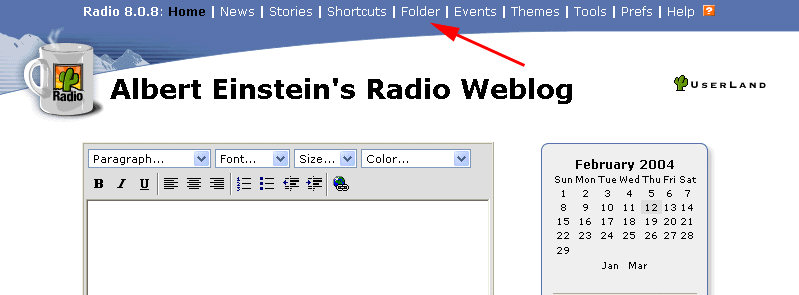
Figure 1. Opening the Folder View page
Next, click the yellow folder icon to the left of the images folder link (figure 2). This will open the images folder in a new window.

Figure 2. Opening the images folder
Locate the image you want to include in your weblog and copy it into the images folder that you just opened (figure 3). When Radio sees you drop the image into the www folder, Radio will automatically publish the image to your public website.
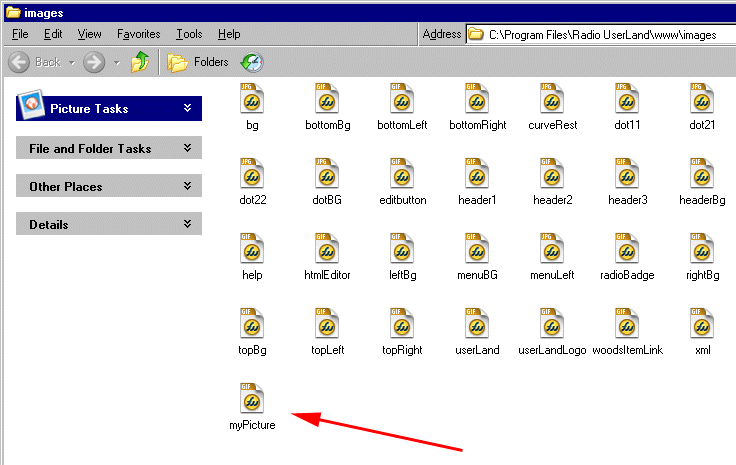
Figure 3. Placing the image into the images folder
Find the image on your website
You will now need to find the address of the image on your website to include it in a post to your weblog.
Return to your Web browser and on the Folder View page click the text link titled "images" under the Title column (figure 4), which will display the contents of the folder in your browser. (If you closed your browser, click on Folder in the Radio menu from the Desktop Website and then open the images folder.)
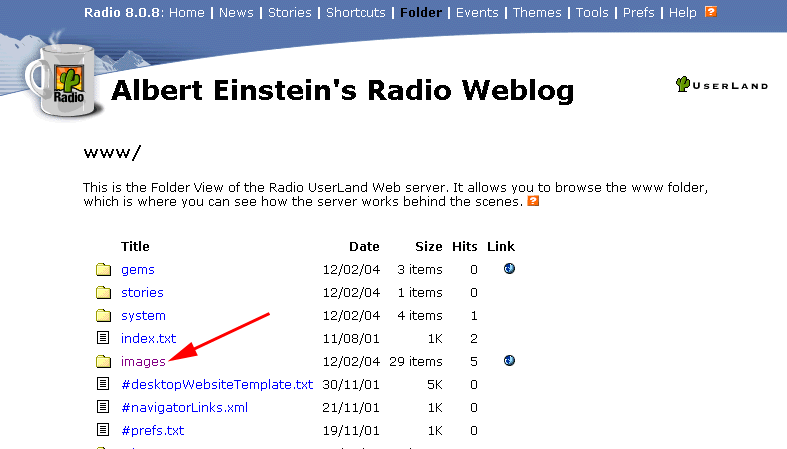
Figure 4. Viewing the images Folder page
On the page that opens, you should see the file you copied into the images folder listed. On the far right, click the globe icon under the Link column for the file (figure 5) and you'll see the image you copied into the images folder.
If you don't see a globe icon for the file, wait a minute for the image to get published to your website and then refresh the page.
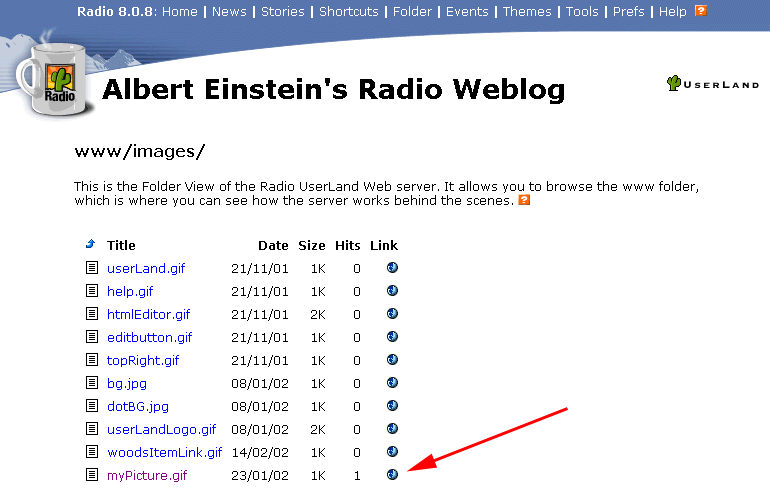
Figure 5. Viewing the image on the public website
Include the image in a weblog post
The URL of the image is the address of where your browser looks to load the image. Copy the URL of the image from the browser address bar (figure 6).
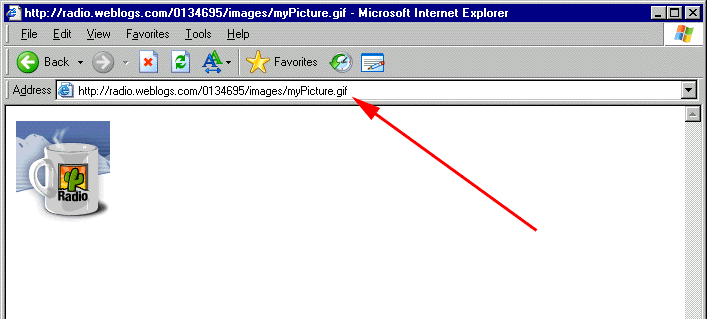
Figure 6. Copying the URL of the image
Then go to the Desktop Website home page and enter the IMG tag below into the editor:
<img src="">
Inside the double quotes after src= you should paste the URL of the image and it will look something like this:
<img src="http://radio.weblogs.com/0134695/images/myPicture.gif">
Note: If you see a toolbar above the editing box with text formatting options, you are using the WYSIWYG editor. You will need to switch to the Source mode in Internet Explorer or View HTML source mode in Mozilla to enter in the IMG tag by hand into the editor (figure 7).
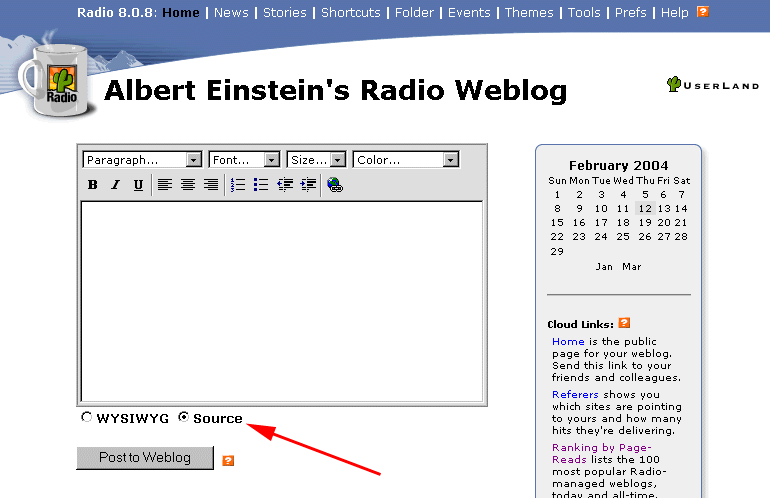
Figure 7. Finding the address of the image
When you post the item to your weblog, you should see the image displayed in the Previous Posts section and on your public website (figure 8).
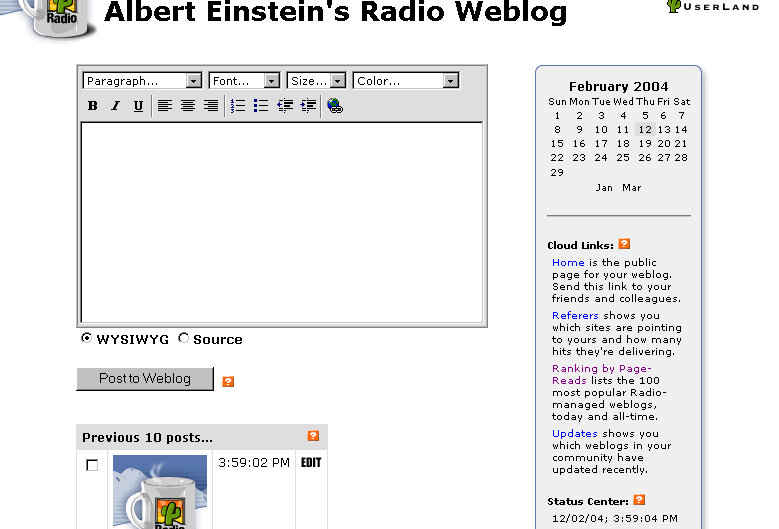
Figure 8. Image displayed in a post
Including an image using the WYSIWYG editor
If you are using the WYSIWYG editor with Internet Explorer on Windows or with Mozilla the last step is simplified.
Follow steps 1 through 5 and then instead of copying the URL for the image, right click on the image in your browser and select copy (figure 9).
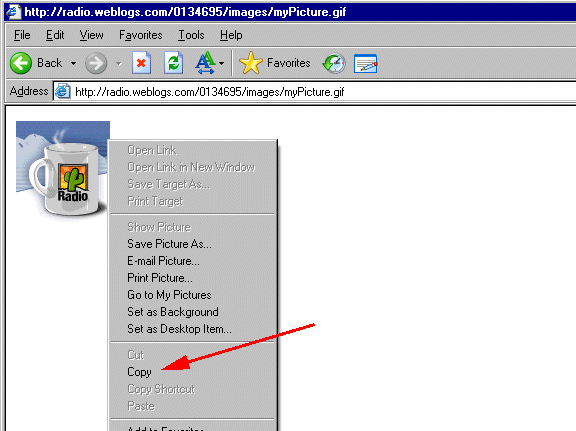
Figure 9. Including an image using the WYSIWYG editor
From the Desktop Website home page, right click on the WYSIWYG editor and select Paste or use the keyboard shortcut (Ctrl-V). The WYSIWYG editor will automatically create the image tag for the image and insert it into the editor.
Wrapping text around an image
If you want the text of your weblog post to wrap around the image, you can align the image using the align attribute for the IMG tag (figure 10).
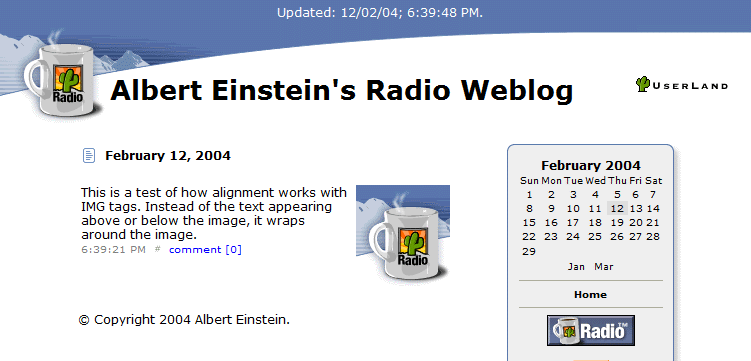
Figure 10. Wrapping text around an image
First, if you are using a WYSIWYG editor you need to switch to the Source/View HTML source mode so you can change the alignment of the image.
Then insert the align="right" to the IMG tag so it looks like this:
<img align="right" src="http://radio.weblogs.com/0134695/images/myPicture.gif">
Along with the right align options, you can choose: left, top, bottom and middle.
When you enter the text you want to wrap around the image, you should enter it after the IMG tag. Like so:
<img align="right" src="http://radio.weblogs.com/0134695/images/myPicture.gif">This is a test of how alignment works with IMG tags. Instead of the text appearing above or below the image, it wraps around the image.
Webmonkey has a tutorial that explains additional options in wrapping text around images.
[Radio UserLand Messages]
11:47:20 PM
|
|
|
|
Thursday, February 5, 2004
|
|
|
|
Wednesday, December 10, 2003
|
|
Quick Start Guide. Welcome to the Radio UserLand Quick Start guide. This guide is written for Radio users on the Windows operating system. Mac users will notice slight differences. If you have questions, please post a message to the Radio UserLand discussion group.
Contents
Downloading and Installing Radio on your Computer
Launching Radio from your Desktop
Posting a Weblog Entry
Using the News Aggregator and RSS Feeds
Purchasing Radio
Downloading and Installing Radio on your Computer
On the Radio UserLand Download page, follow instructions for downloading and installing the version of Radio for your computer. The installation process for Radio is very simple and takes only a couple of minutes to complete.
Launching Radio from your Desktop
Radio runs on your computer desktop and is accessed and controlled through your web browser. This means that while managing your Radio Weblog, you are looking at a web page that is being hosted by Radio on your computer. We call this workplace your Desktop Website (Figure 1). Radio must be running for you to access your Desktop Website. When Radio is launched, it will automatically open your Web browser and take you to your Desktop Website. When Radio is installed, it places an icon on your desktop with the words Radio UserLand beneath the icon. Double-click on the icon to start Radio.
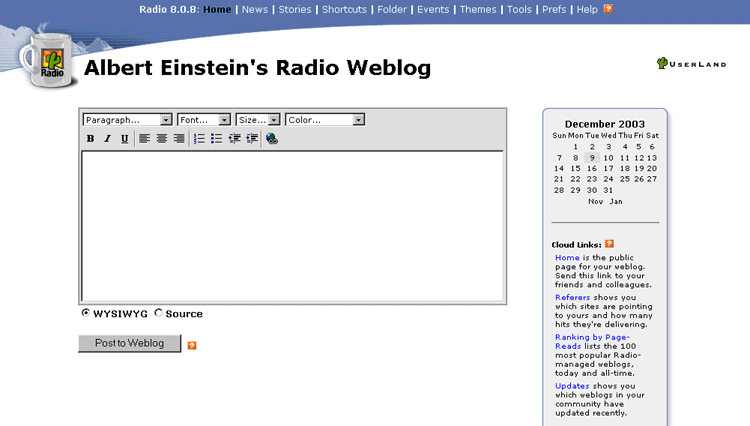
Figure 1. The Desktop Website
When Radio is running, you can access your Desktop Website on your computer at http://127.0.0.1:5335/. You can bookmark this page in your browser and return to it anytime Radio is running. Because the Desktop Website is served by Radio on your computer's hard drive, until you are ready for advanced features, you can only access the Desktop Website while using the computer on which the Radio UserLand is running.
Posting a Weblog entry
The centerpiece of the Desktop Website is the Editing Box (Figure 2). The Editing Box looks like and can be used much like any typical word processor.
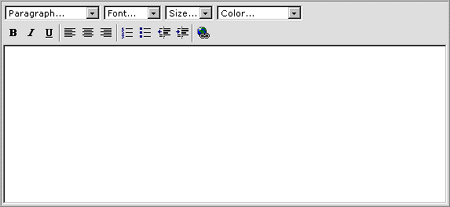
Figure 2. The Editing Box
Go ahead and type something in the Editing Box and then click on the "Post to Weblog" button located below the Editing Box. When you click this button, Radio sends the content that you just created to UserLand's Internet servers. You've just created a public weblog viewable by anyone on the Internet. To view your public weblog, click on the Home link located to the right of the Editing Box on your Desktop Website (Figure 3). Note your Radio Weblog's unique URL address in the address box at the top of the browser page. To return to your Desktop Website, click on the browser's back button.
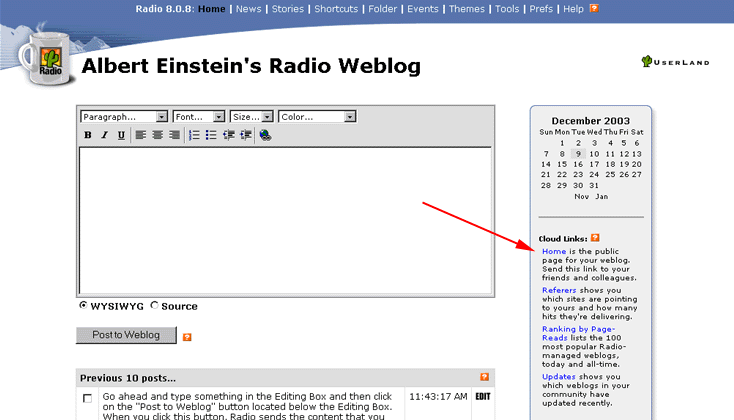
Figure 3. Home link
After you post content to your weblog, you can easily edit it, or delete it. Below the Editing Box, Radio displays a copy of the last 10 posts you've made (Figure 3). To edit any post, click the EDIT button to the right of that post. This places the prior post back into the Editing Box where you can make changes. When finished, click the Post to Weblog button. To edit older posts not in the previous 10 posts section, you can use the calendar on the desktop website home page. Each post also has a checkbox to the left. To delete a post, check the boxes to its left, scroll to the bottom of the page and click the Delete button.
Figure 4 has instructions on how to create hyperlinks between your Weblog posts and other pages on the Internet.
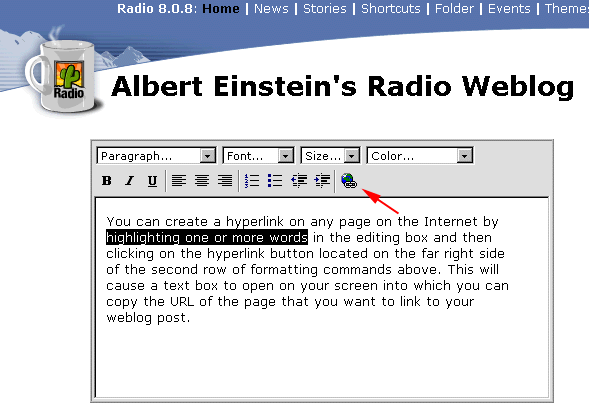
Figure 4. Creating hyperlinks.
Using the News Aggregator and RSS Feeds
Radio UserLand includes some very powerful Internet tools. One of its most popular features is its integrated RSS news reader. RSS stands for Really Simple Syndication and is an XML-based web syndication format co-authored in 1998 by Netscape Communications and UserLand's founder, Dave Winer.
Once every hour while Radio is running, Radio will scan for new articles or updates published by your favorite websites (such as Yahoo, InfoWorld, or the New York Times) or weblogs (such as Scripting News, Jake's Radio Blog, or Workbench). Summaries of these new articles and posts are aggregated on your Radio News page. To access your News page, click on the News link at the very top and near the center of your Desktop Website page.
Radio comes preset with subscriptions to several RSS news feeds, but you should customize this feature to match your specific interests. You will quickly learn that your Radio News Aggregator is the fastest and easiest way to monitor all the news that interests you on the Web. Each news source will be identified by a shaded bar, with the name of the source and the date and time that source was lasted updated (Figure 5).
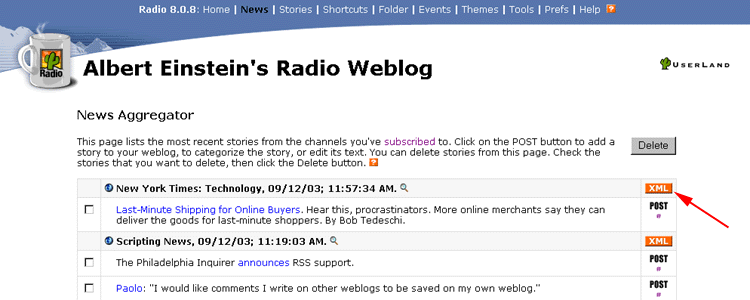
Figure 5. The News Aggregator
You can manage your subscriptions by clicking on the blue subscribed link in the first paragraph. This will take you to a page listing all of your subscriptions. To delete subscriptions, check the boxes to the left of the subscriptions you wish to delete, scroll to the bottom of the page and click the Unsubscribe button.
You can add subscriptions by copying the URL of any XML page into the box at the top of the subscriptions page. Web publishers have made this easy by displaying an orange XML box on pages that participate in RSS (noted by the red arrow in Figure 5). When you click on any orange XML box, you will see the XML version of the page you had been viewing. Go to the address box at the top of the page, copy the URL and paste it into the URL box on the top of your Radio subscriptions page.
Finally, note that each item within your news page includes on the right a linked labeled POST. If you click on that link, the post from your News page will immediately be copied to the Editing Box of your Desktop Website. You can edit the entry or provide your own comments on the prior author's post. This is the heart of blogging and you are now a blogger with potentially hundreds of news items fed to you every hour on which you can comment and publish your thoughts through your own Radio Weblog.
Purchasing Radio
At any time during your 30-day free trial of Radio, you can purchase rights to use the software for one year by visiting the UserLand Store. The software license includes all updates during the year, optional hosting on radio.weblogs.com and technical support.
[Radio UserLand Messages]
9:45:25 AM
|
|
|
|
Thursday, October 30, 2003
|
|

|
© Copyright 2004 Skip Dodson.
Last update: 10/16/04; 2:09:14 PM.
|
|
| October 2004 |
| Sun |
Mon |
Tue |
Wed |
Thu |
Fri |
Sat |
| |
|
|
|
|
1 |
2 |
| 3 |
4 |
5 |
6 |
7 |
8 |
9 |
| 10 |
11 |
12 |
13 |
14 |
15 |
16 |
| 17 |
18 |
19 |
20 |
21 |
22 |
23 |
| 24 |
25 |
26 |
27 |
28 |
29 |
30 |
| 31 |
|
|
|
|
|
|
| Jun Nov |
|
|


