| |

|
Wednesday, December 10, 2003
|
|
Quick Start Guide. Welcome to the Radio UserLand Quick Start guide. This guide is written for Radio users on the Windows operating system. Mac users will notice slight differences. If you have questions, please post a message to the Radio UserLand discussion group.
Contents 
Downloading and Installing Radio on your Computer
Launching Radio from your Desktop
Posting a Weblog Entry
Using the News Aggregator and RSS Feeds
Purchasing Radio
Downloading and Installing Radio on your Computer
On the Radio UserLand Download page, follow instructions for downloading and installing the version of Radio for your computer. The installation process for Radio is very simple and takes only a couple of minutes to complete.
Launching Radio from your Desktop
Radio runs on your computer desktop and is accessed and controlled through your web browser. This means that while managing your Radio Weblog, you are looking at a web page that is being hosted by Radio on your computer. We call this workplace your Desktop Website (Figure 1). Radio must be running for you to access your Desktop Website. When Radio is launched, it will automatically open your Web browser and take you to your Desktop Website. When Radio is installed, it places an icon on your desktop with the words Radio UserLand beneath the icon. Double-click on the icon to start Radio.
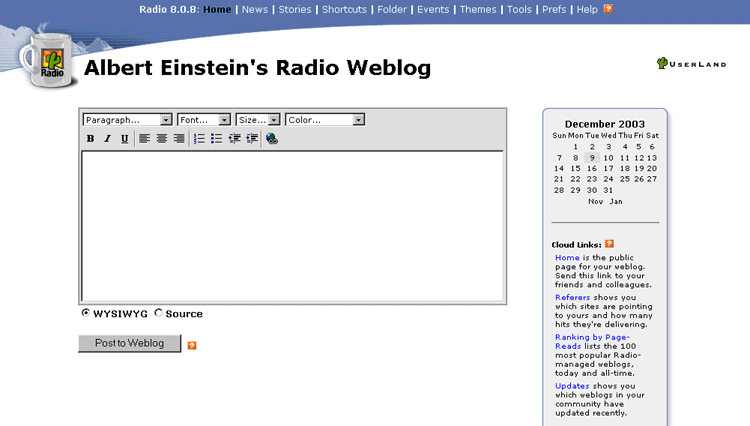
Figure 1. The Desktop Website
When Radio is running, you can access your Desktop Website on your computer at http://127.0.0.1:5335/. You can bookmark this page in your browser and return to it anytime Radio is running. Because the Desktop Website is served by Radio on your computer's hard drive, until you are ready for advanced features, you can only access the Desktop Website while using the computer on which the Radio UserLand is running.
Posting a Weblog entry
The centerpiece of the Desktop Website is the Editing Box (Figure 2). The Editing Box looks like and can be used much like any typical word processor.
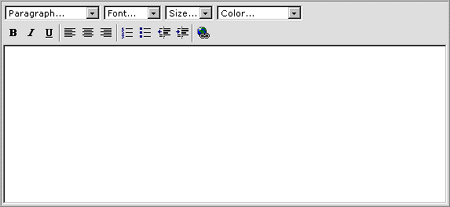
Figure 2. The Editing Box
Go ahead and type something in the Editing Box and then click on the "Post to Weblog" button located below the Editing Box. When you click this button, Radio sends the content that you just created to UserLand's Internet servers. You've just created a public weblog viewable by anyone on the Internet. To view your public weblog, click on the Home link located to the right of the Editing Box on your Desktop Website (Figure 3). Note your Radio Weblog's unique URL address in the address box at the top of the browser page. To return to your Desktop Website, click on the browser's back button.
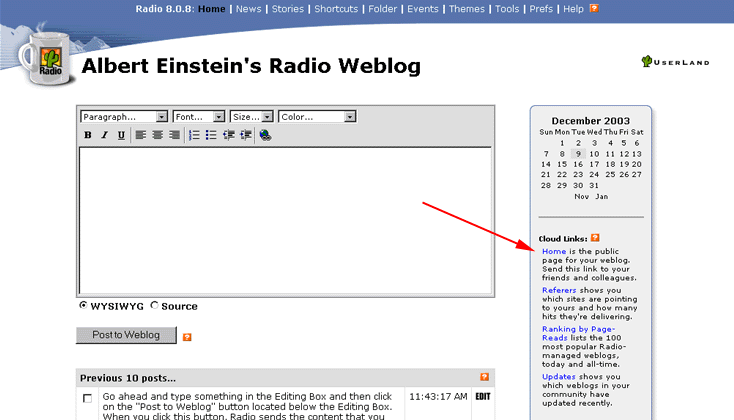
Figure 3. Home link
After you post content to your weblog, you can easily edit it, or delete it. Below the Editing Box, Radio displays a copy of the last 10 posts you've made (Figure 3). To edit any post, click the EDIT button to the right of that post. This places the prior post back into the Editing Box where you can make changes. When finished, click the Post to Weblog button. To edit older posts not in the previous 10 posts section, you can use the calendar on the desktop website home page. Each post also has a checkbox to the left. To delete a post, check the boxes to its left, scroll to the bottom of the page and click the Delete button.
Figure 4 has instructions on how to create hyperlinks between your Weblog posts and other pages on the Internet.
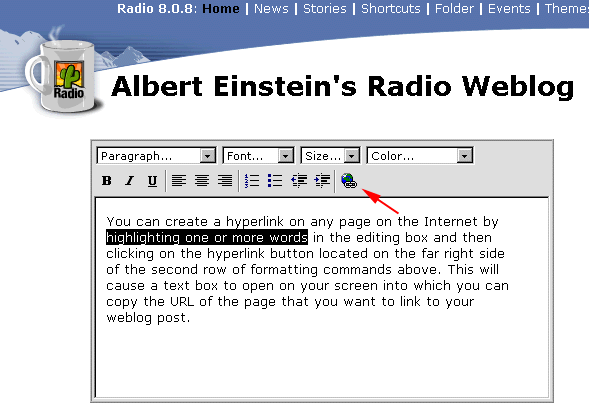
Figure 4. Creating hyperlinks.
Using the News Aggregator and RSS Feeds
Radio UserLand includes some very powerful Internet tools. One of its most popular features is its integrated RSS news reader. RSS stands for Really Simple Syndication and is an XML-based web syndication format co-authored in 1998 by Netscape Communications and UserLand's founder, Dave Winer.
Once every hour while Radio is running, Radio will scan for new articles or updates published by your favorite websites (such as Yahoo, InfoWorld, or the New York Times) or weblogs (such as Scripting News, Jake's Radio Blog, or Workbench). Summaries of these new articles and posts are aggregated on your Radio News page. To access your News page, click on the News link at the very top and near the center of your Desktop Website page.
Radio comes preset with subscriptions to several RSS news feeds, but you should customize this feature to match your specific interests. You will quickly learn that your Radio News Aggregator is the fastest and easiest way to monitor all the news that interests you on the Web. Each news source will be identified by a shaded bar, with the name of the source and the date and time that source was lasted updated (Figure 5).
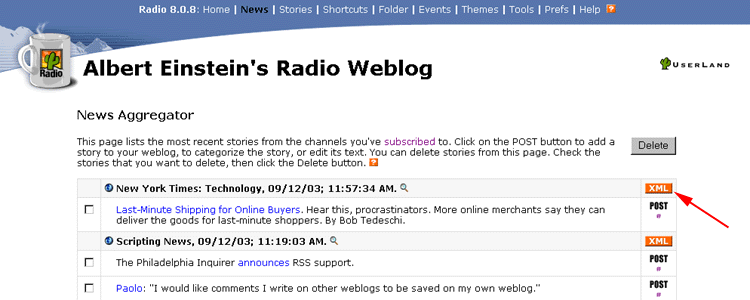
Figure 5. The News Aggregator
You can manage your subscriptions by clicking on the blue subscribed link in the first paragraph. This will take you to a page listing all of your subscriptions. To delete subscriptions, check the boxes to the left of the subscriptions you wish to delete, scroll to the bottom of the page and click the Unsubscribe button.
You can add subscriptions by copying the URL of any XML page into the box at the top of the subscriptions page. Web publishers have made this easy by displaying an orange XML box on pages that participate in RSS (noted by the red arrow in Figure 5). When you click on any orange XML box, you will see the XML version of the page you had been viewing. Go to the address box at the top of the page, copy the URL and paste it into the URL box on the top of your Radio subscriptions page.
Finally, note that each item within your news page includes on the right a linked labeled POST. If you click on that link, the post from your News page will immediately be copied to the Editing Box of your Desktop Website. You can edit the entry or provide your own comments on the prior author's post. This is the heart of blogging and you are now a blogger with potentially hundreds of news items fed to you every hour on which you can comment and publish your thoughts through your own Radio Weblog.
Purchasing Radio
At any time during your 30-day free trial of Radio, you can purchase rights to use the software for one year by visiting the UserLand Store. The software license includes all updates during the year, optional hosting on radio.weblogs.com and technical support.
[Radio UserLand Messages]
9:45:25 AM 
|
|

|
© Copyright 2003 Skip Dodson.
Last update: 12/10/03; 9:46:25 AM.
|
|
| December 2003 |
| Sun |
Mon |
Tue |
Wed |
Thu |
Fri |
Sat |
| |
1 |
2 |
3 |
4 |
5 |
6 |
| 7 |
8 |
9 |
10 |
11 |
12 |
13 |
| 14 |
15 |
16 |
17 |
18 |
19 |
20 |
| 21 |
22 |
23 |
24 |
25 |
26 |
27 |
| 28 |
29 |
30 |
31 |
|
|
|
| Oct Jan |
|
|


