Roller User Guide
For Roller Version 0.9.0
Copyright © 2002 David M Johnson
Updated: April 4, 2002
-
Introduction
-
Getting started
- Sign up for a new account
- Your initial website
-
Editing your weblog
- Adding a new entry
- Editing an old entry
-
Editing your bookmark collection
- Adding new bookmark folders
- Adding bookmarks to folders
-
Editing your newsfeed collection
- Adding and deleting newsfeeds
-
Customizing your pages
- Creating and editing pages
- Your initial pages: Weblog,
_DayTemplate and _css
-
Macros for use on Pages
- $macros.showWeblogCategoryChooser(
boolean )
- $macros.showWeblogEntries()
- $macros.showWeblogCalendar()
- $macros.includePage( string
)
- $macros.showBookmarks(
string, boolean )
- $macros.showNewsfeeds()
- $macros.showRSSBadge()
-
Macros for use on your DayTemplate page
- $macros.showPermalink()
- $macros.showEntryDate()
- $entries
- $entry.title
- $entry.text
- $entry.updateTime
- $entry.pubTime
Introduction
Roller is a Weblogger. Roller makes it
easy for you to maintain a weblog, even if you are have little or no
knowledge of HTML. All you have to do is go to a web site that is running
the Roller software, sign up for an account and bam you have a weblog.
You can start posting right away. You will need to know a little about
HTML if you want to kick it up a notch by customizing the layout of your
Weblog and adding new pages to your Weblog website. More on that later.
Please note that Roller is currently alpha
quality code – not ready for prime time – there are probably a number
of design flaws and an even larger number of bugs. As always with software
of all sorts, and especially pre-release software such as this, use at
your own risk.
Getting Started
To sign-up for a Roller account, go the the main Roller
page and click on the link that reads “register as a new user.” Enter
your login name, your real name, your desired password, your e-mail address,
and pick one of the predefined Weblog themes provided by Roller.
After your account is created you will be returned to
the main Roller page. You will see that your name has been added to
the list of Roller users displayed on the main page. If you click on
your name in this list, you will be taken to your
Weblog page.
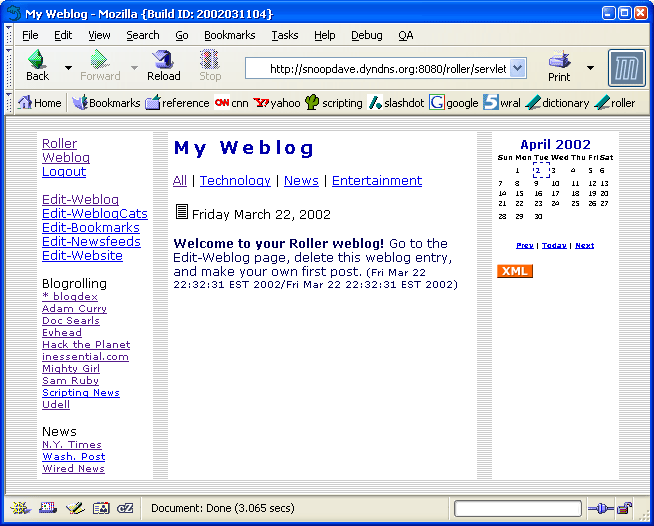
Your initial website will include just one webpage that
is visible to your readers and that is named “Weblog.” This page
will include a navigation bar, a weblog category chooser, a weblog calendar,
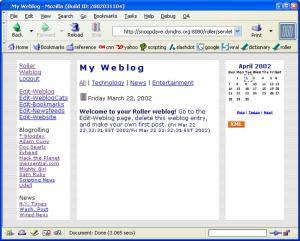
some links and a weblog area where your posts will appear. The screenshot
below shows what your page will look like if you chose the Roller “grey”
theme:
Figure 1: your initial
Weblog page
From your Weblog page or from the main Roller page, click
the Login link. Enter your username and password, click submit, and
you will be taken to your Weblob page again. But this time, you will
see some new Links on the page: Edit-Weblog, Edit-WeblogCats, Edit-Bookmarks,
Edit-Newsfeeds, and Edit-Website. These links lead you to pages for editing
your Weblog, categories, bookmarks (AKA links), newsfeeds, and the actual
pages that make up your website. First, lets talk about how to edit
your Weblog.
Editing your Weblog
Editing your Weblog means
adding new Weblog entries to be enjoyed by your readers and editing older
Weblog entries to correct mistakes, clarify points, or to censor those
drunken ramblings you entered last night.
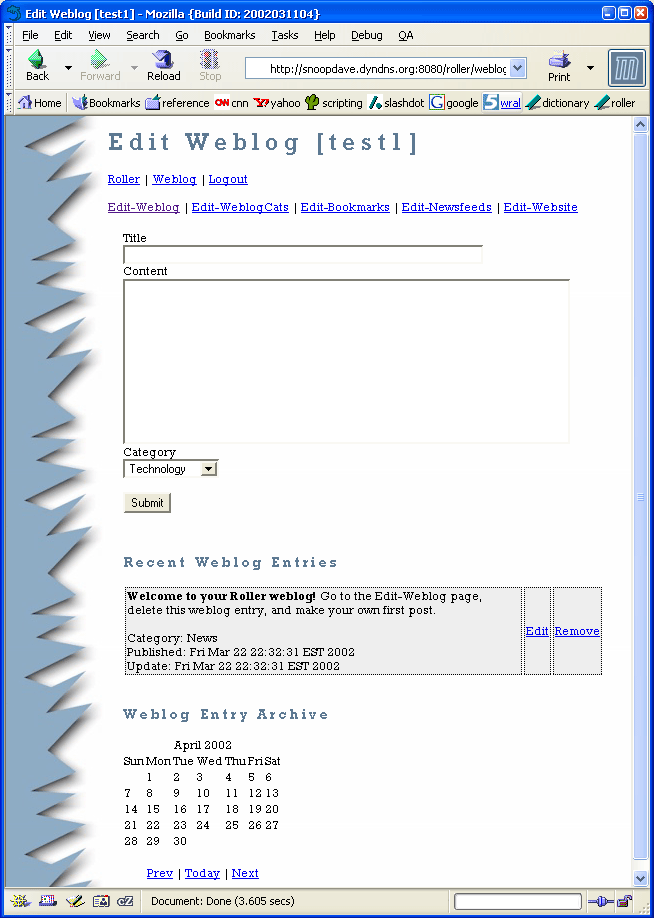
To add a new Weblog entry you simply go
to the Edit-Weblog page, enter an optional title, enter the Weblog entry,
choose a Weblog category. and hit the Submit button. As soon as you
do that, your Weblog entry is posted to your Weblog for the world to
see.
Figure
2: the Edit-Weblog page
You can edit or remove an old Weblog entry
by clicking on the Edit or Remove links in the Recent Weblog Entries
part of the page. If the Weblog entry that you want to edit is not so
recent and is not shown in the Recent Weblog Entries list, then you can
use the Weblog Entry Archive calendar to find that old entry.
Editing your bookmark collection
You probably already have a web bookmark
collection stored in your web browser, so why do you need to enter bookmarks
into Roller. Well, most Weblog authors like to include links to their
favorite websites and to their favorite Weblogs right on their Weblog
page. Roller's bookmark feature makes it easy for you to do this too.
Bookmarks are organized in to named folders.
You can define any number of folders and each of these folders can hold
any number of bookmarks. There is only one level of folders, so you
cannot have a folder that contains other folders.
Your initial website contains two bookmark
folders: one named “Blogrolling” that contains Weblogging related links
and one named “News” that contains links to well known news sources.
If you look at Figure 1 again, you can see that these two folder are
displayed on the left side of the Weblog page. You can use Roller's
bookmark management features to rename these folders if you wish, or
you can delete them add add folders of your own choosing.
Figure
3: the Edit-Bookmark Folders page
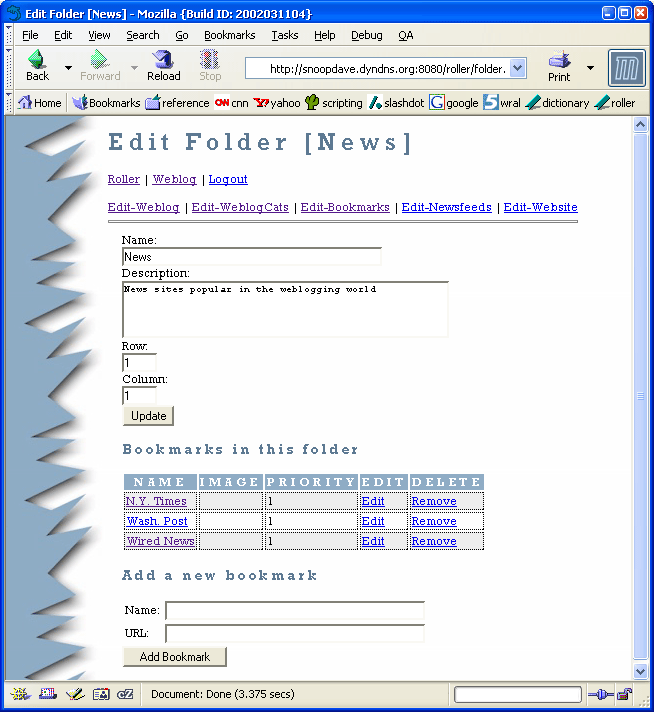
Once you have defined one or more bookmark
folders, you can start adding bookmarks to those folders. From the Edit-Bookmark
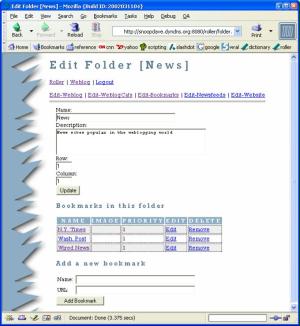
Folders page, click the Edit link for the Folder you wish to edit. You
will be taken to the Edit-Bookmark Folder page for that folder. From
there you can edit the name of the folder and you can add and remove
bookmarks in that folder.
Figure
4: the Edit-Bookmark Folder page
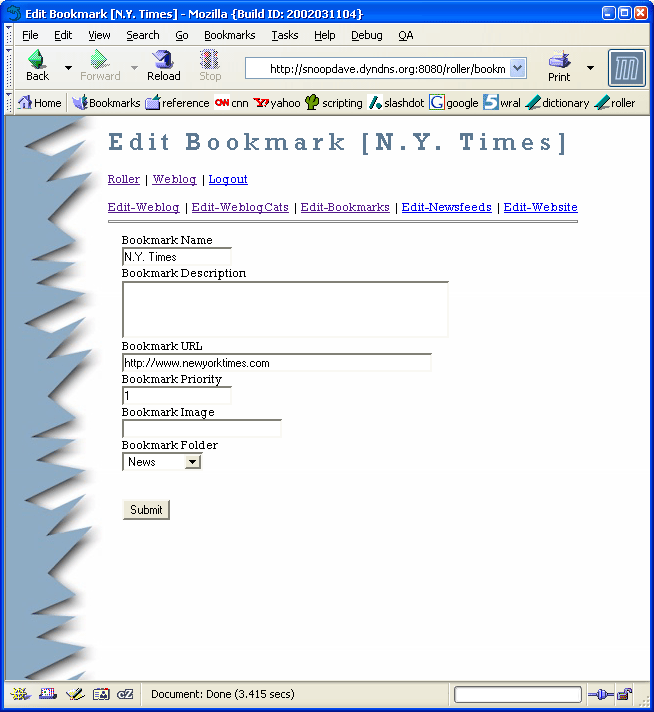
After you use the Edit-Bookmark Folder
to add a bookmark, you can edit the Bookmark itself. To edit a bookmark,
click on the Edit link in the Edit-Bookmark Folder page. That will take
you to the Edit-Bookmark page and from there you can change the name,
description and display priority of the bookmark you have chosen to edit.
You can also move the bookmark to another folder by changing the Bookmark
Folder combo-box.
Figure
5: the Edit-Bookmark page
Editing your newsfeed collection
A newsfeed is a list of news stories and
a short desciption of each story that is automically retrieved from some
remote website. Newsfeeds are delivered in a format known as Really
Simple Syndication or Rich Site Summary or just RSS.
Roller allows you to include newsfeeds
on your Weblog page or on a separate page that you create as part of
your Weblog's website. Your initial website will include three newsfeeds,
but none of these newsfeeds are displayed on your Weblog page. You can
use one of the macros that we will discuss later to display your newsfeeds.
Before you include a newsfeed on your
website, you should probaby make sure that doing so is OK with the provider
of the newsfeed. Some providers might frown upon this and by frown I
mean that they might sick a pack of rabid lawyers on your ass. Anyhow,
use your own judgement here – I am not a lawyer and I am not responsible
for any of your current or future legal troubles.
To add a newsfeed you need a URL to the
providers RSS feed. This URL usually ends with the letters “.xml”.
Enter the name that you would like to use for the newsfeed, enter the
URL and hit enter to add the newsfeed.
Customizing your pages
Your Weblog page is defined by a page
template. A template is a file with some special “macros” that indicate
where Roller is supposed to put your Weblog, Weblog Calendar, and other
dynamically created content. A templage can be an HTML file, an HTML
fragment, a CSS page, or just about anything else you can enter into
Roller as text.
You initial Roller website has three page
template, only one of which is visible to users. The pages are named
Weblog, _DayTemplate and _css.
-
The Weblog page is the
visible page, it is the HTML template that defines your Weblog.
It is a mix of HTML and Roller macros that render the dynamic parts
of the page like the Weblog Calendar and the actual Weblog entries.
-
The _DayTemplate page is
the HTML template that defines the entries for each day are formatted
in your Weblog page. This is essentially an HTML fragment with some
Roller macros for rendering the day's Weblog entries, title, date,
and other items.
-
The _css page is a CSS
style-sheet information that is included (using a macro) on your
Weblog page.
You can define as many pages as you would
like. You must specify which page is to be your Default Page, that is,
the page that your readers first see when they visit your website. You
must also specify which page is your Weblog day template.
Note that any page whose name begins with
the underbar “_” character will not be visible to your readers. That
is why the _DayTemplate and _css pages start with underbars, they are
used internally and are not meant for public consumption.
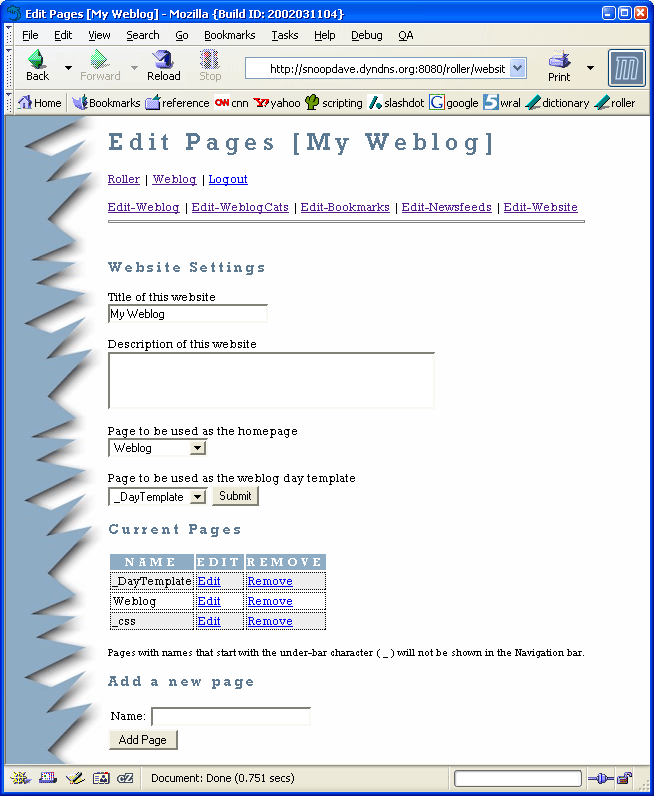
Figure
6: the Edit-Website page
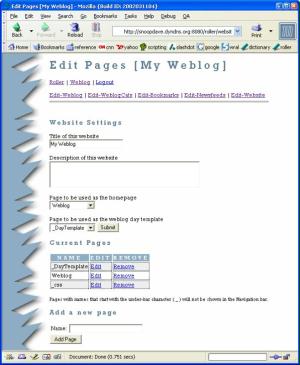
If you click on one of the Current
Pages in the Edit-Website page, you will be directed to the Edit-Page
page so that you can edit that page. You can put anything on a page,
but typically you will put HTML with some Roller macros mixed in. Next
you will read about the various Roller macros that are available for
your use.
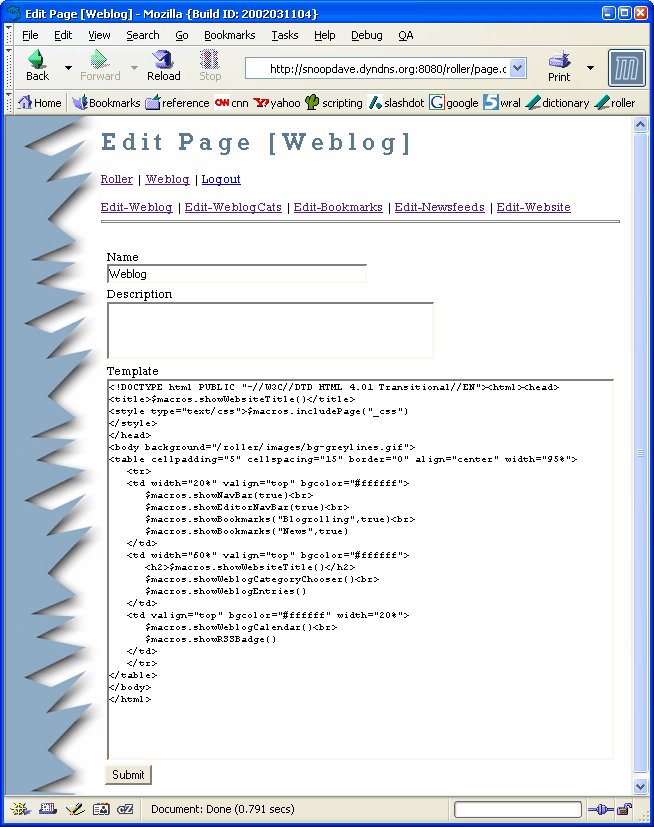
The screenshot below shows the Weblog
page being edited in the Edit-Page page.
Figure
7: the Edit-Page page

Macros intended for use on any page template
Macros tell Roller where to place the
dynamic parts of your web pages. Macros are actually Velocity expressions.
For more information on Velocity, visit the Velocity web site and read
the Velocity User's Guide. Note that I use the
term macro loosely, but it does have a specific meaning in Velocity.
What I call a macro is really a Velocity expression.
$macros.showNavBar( boolean )
- show your website's navigation bar: a list of links to each of the
visible pages in your weblog. The macro takes one boolean (true or false)
argument. If you enter true, then the navbar will be drawn vertically.
If you enter false, then the navbar will be drawn horizontally.
$macros.EditorNavBar( booean )
- show your website's editor navigation bar: a list of links to each
of the Edit pages that you can use to edit your website. The macro takes
one boolean (true or false) argument. If you enter true, then the navbar
will be drawn vertically. If you enter false, then the navbar will be
drawn horizontally.
$macros.showWeblogCategoryChooser(
boolean ) - show the Weblog Category chooser: a list of links to the
different categories of posts in your Weblog. The boolean argument
determines if the chooser should be drawn horizontally or vertcally.
$macros.showWeblogEntries() -
show the most recent entries in your Weblog.
$macros.showWeblogCalendar() - show your Weblog Calendar: a calendar with links to your
previous Weblog entries.
$macros.includePage( string )
- includes the content of another page template, specified by name.
$macros.showRSSBadge() - shows
an XML icon that links to an RSS representation of your most recent Weblog
entries.
Macros intended for use on your
day template page
Your Day Template page determines how each day of Weblog
entries is formatted on the page by the $macros.showWeblogEntries()
macro. See the
$macros.showPermalink() - shows
an icon that provides a permanent link to this day in your Weblog.
$macros.showEntryDate() - shows
the day's date.
$entries - this Velocity expression
is a collection of Weblog entry objects for this day. Each entry has
the following properties:
$entry.title - title of the Weblog
entry
$entry.text - the text of the
Weblog entry
$entry.updateTime - the time
of last update for the Weblog entry
$entry.pubDate - the original
publish time for the Weblog entry
Examples
Here is the Weblog page template for the
Weblog shown in figure 1 (macros are shown in blue):
<!DOCTYPE html PUBLIC "-//W3C//DTD HTML 4.01 Transitional//EN">
<html><head>
<title>$macros.showWebsiteTitle()</title>
<style type="text/css">$macros.includePage("_css")
</style>
</head>
<body background="/roller/images/bg-greylines.gif">
<table cellpadding="5" cellspacing="15" border="0" align="center" width="95%">
   <tr>
   <td width="20%" valign="top" bgcolor="#ffffff">
      $macros.showNavBar(true)<br>
      $macros.showEditorNavBar(true)<br>
      $macros.showBookmarks("Blogrolling",true)<br>
      $macros.showBookmarks("News",true)
   </td>
   <td width="60%" valign="top" bgcolor="#ffffff">
      <h2>$macros.showWebsiteTitle()</h2>
      $macros.showWeblogCategoryChooser()<br>
      $macros.showWeblogEntries()
   </td>
   <td valign="top" bgcolor="#ffffff" width="20%">
      $macros.showWeblogCalendar()<br>
      $macros.showRSSBadge()
   </td>
   </tr>
</table>
</body></html>
Here is the Day Template for the Weblog
shown in figure 1:
<table width="95%">
<tr>
   <td>
   $macros.showPermalink()
   $macros.showEntryDate()
   </td>
</tr>
</table>
#foreach( $entry in $entries )
<p>
   <b>$entry.title</b> $entry.text
   <font size="2">($entry.updateTime/$entry.pubTime)</font>
</p>
#end

|
© Copyright
2002
David M Johnson.
Last update:
8/20/2002; 12:07:10 AM.
This theme is based on the SoundWaves
(blue) Manila theme. |
|