Posting Images to your Weblog Guide. You've started to use Radio to write your weblog, but you want to include a picture in your weblog. In this tutorial, we'll take an image called myPicture.gif, save it to our public website and include it in a weblog post.
Contents 
Publishing the image
Find the image on your website
Include the image in a weblog post
Including an image using a WYSIWYG editor
Wrapping text around an image
Publishing the image
First you need to open the images folder where you will save your image. Click on the Folder link in the Radio menu at the top of any page on the Desktop Website (figure 1).
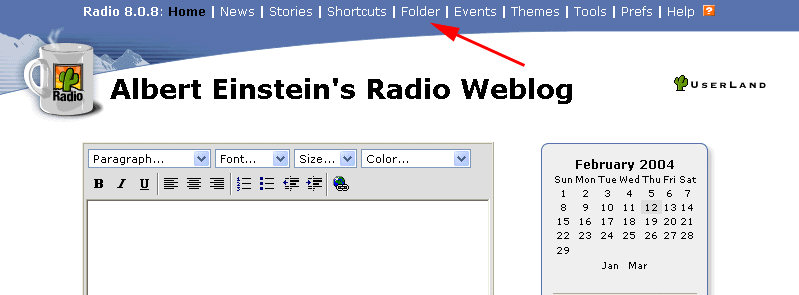
Figure 1. Opening the Folder View page
Next, click the yellow folder icon to the left of the images folder link (figure 2). This will open the images folder in a new window.

Figure 2. Opening the images folder
Locate the image you want to include in your weblog and copy it into the images folder that you just opened (figure 3). When Radio sees you drop the image into the www folder, Radio will automatically publish the image to your public website.
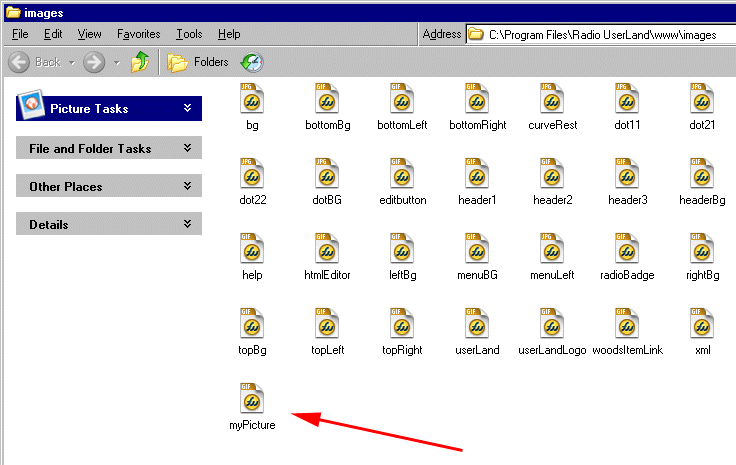
Figure 3. Placing the image into the images folder
Find the image on your website
You will now need to find the address of the image on your website to include it in a post to your weblog.
Return to your Web browser and on the Folder View page click the text link titled "images" under the Title column (figure 4), which will display the contents of the folder in your browser. (If you closed your browser, click on Folder in the Radio menu from the Desktop Website and then open the images folder.)
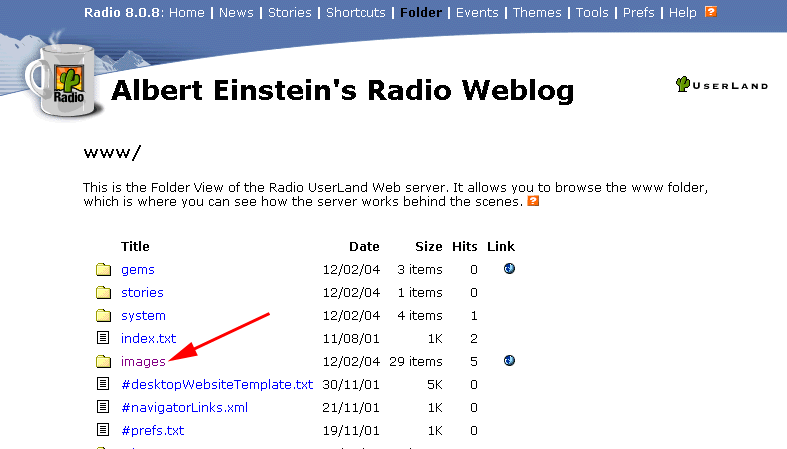
Figure 4. Viewing the images Folder page
On the page that opens, you should see the file you copied into the images folder listed. On the far right, click the globe icon under the Link column for the file (figure 5) and you'll see the image you copied into the images folder.
If you don't see a globe icon for the file, wait a minute for the image to get published to your website and then refresh the page.
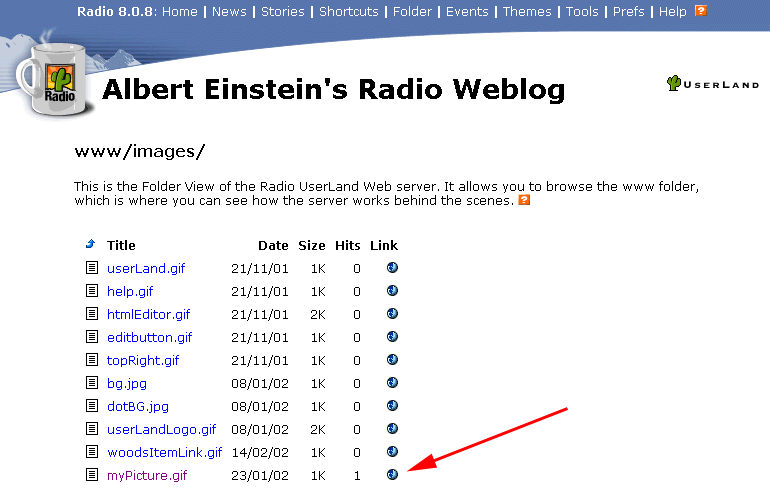
Figure 5. Viewing the image on the public website
Include the image in a weblog post
The URL of the image is the address of where your browser looks to load the image. Copy the URL of the image from the browser address bar (figure 6).
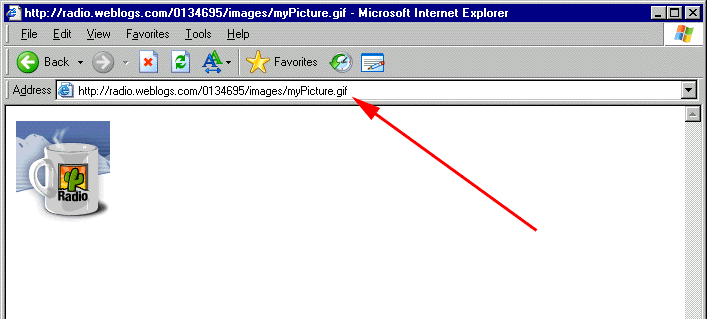
Figure 6. Copying the URL of the image
Then go to the Desktop Website home page and enter the IMG tag below into the editor:
<img src="">
Inside the double quotes after src= you should paste the URL of the image and it will look something like this:
<img src="http://radio.weblogs.com/0134695/images/myPicture.gif">
Note: If you see a toolbar above the editing box with text formatting options, you are using the WYSIWYG editor. You will need to switch to the Source mode in Internet Explorer or View HTML source mode in Mozilla to enter in the IMG tag by hand into the editor (figure 7).
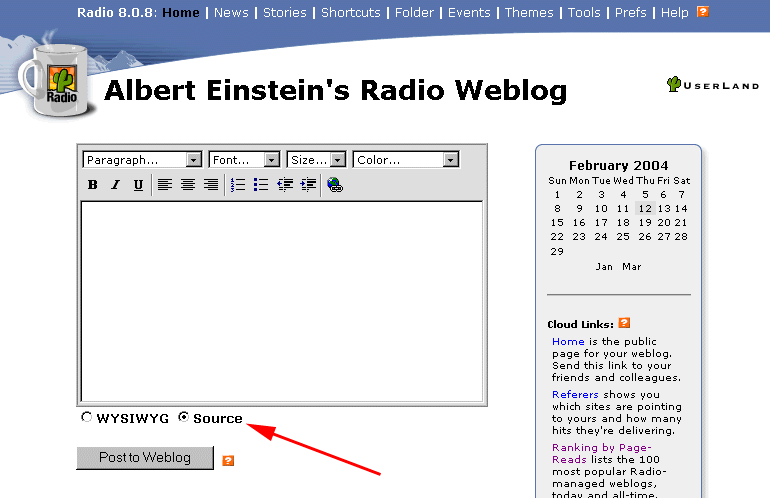
Figure 7. Finding the address of the image
When you post the item to your weblog, you should see the image displayed in the Previous Posts section and on your public website (figure 8).
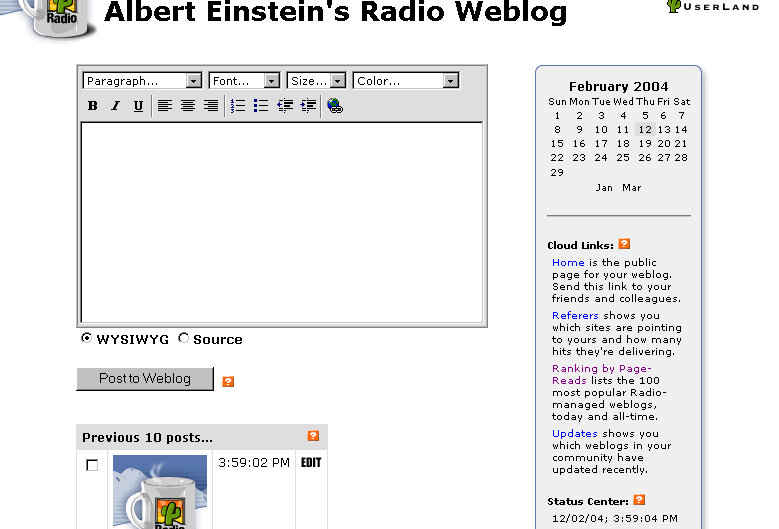
Figure 8. Image displayed in a post
Including an image using the WYSIWYG editor
If you are using the WYSIWYG editor with Internet Explorer on Windows or with Mozilla the last step is simplified.
Follow steps 1 through 5 and then instead of copying the URL for the image, right click on the image in your browser and select copy (figure 9).
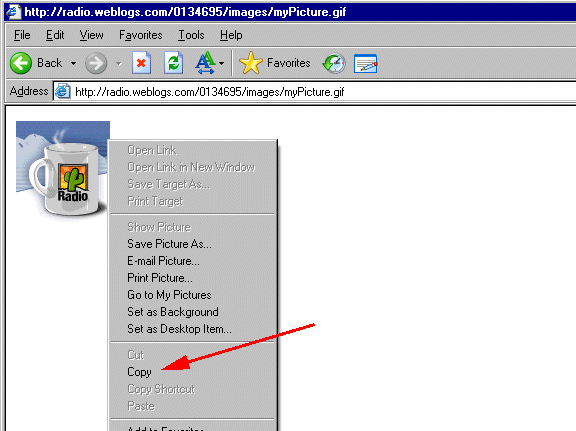
Figure 9. Including an image using the WYSIWYG editor
From the Desktop Website home page, right click on the WYSIWYG editor and select Paste or use the keyboard shortcut (Ctrl-V). The WYSIWYG editor will automatically create the image tag for the image and insert it into the editor.
Wrapping text around an image
If you want the text of your weblog post to wrap around the image, you can align the image using the align attribute for the IMG tag (figure 10).
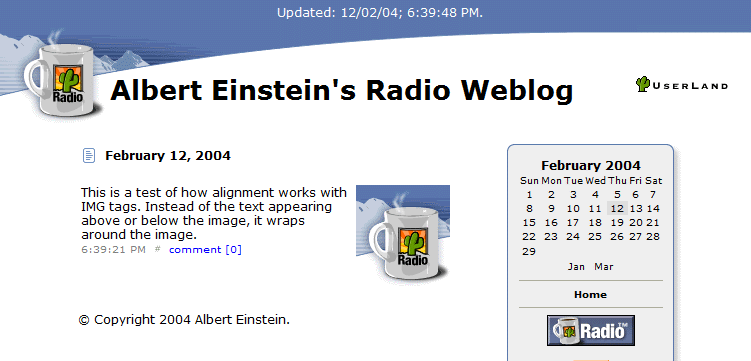
Figure 10. Wrapping text around an image
First, if you are using a WYSIWYG editor you need to switch to the Source/View HTML source mode so you can change the alignment of the image.
Then insert the align="right" to the IMG tag so it looks like this:
<img align="right" src="http://radio.weblogs.com/0134695/images/myPicture.gif">
Along with the right align options, you can choose: left, top, bottom and middle.
When you enter the text you want to wrap around the image, you should enter it after the IMG tag. Like so:
<img align="right" src="http://radio.weblogs.com/0134695/images/myPicture.gif">This is a test of how alignment works with IMG tags. Instead of the text appearing above or below the image, it wraps around the image.
Webmonkey has a tutorial that explains additional options in wrapping text around images.
[Radio UserLand Messages]
11:47:20 PM 
|
|


